
Docs
From install to
the DNS switch.
Everything about a move on one page, in the order you meet it in the plugin. Search it, or jump from the list on the left.
Nothing on this page matches. Try another word, or ask [email protected].
Quick start
A move takes five screens in the admin of the old site. The new server pulls everything from the old site by itself; nothing travels through your computer or through a server of ours.
- Prepare the new server. Install an empty WordPress there. Porthena replaces it with your site.
- Install Porthena on the old site and open it from the admin menu.
- Destination. Give the login of the new host (SFTP, FTPS, FTP or cPanel), or paste a key from Porthena on the new site. Press Test connection, then Continue.
- What to move and Review. Keep the defaults or untick what you do not need, read the checks, press Start transfer.
- Done. Look at the new site, point your domain to the new server, and press Remove plugin under Clean up when you no longer need the old hosting.
The old site stays online and is only read. Keep it until the new one has run well for a few days.
What you need
| Old site | New server | |
|---|---|---|
| WordPress | 5.6 or newer, with Porthena installed. You need an administrator account; on a network of sites a network administrator. | An empty WordPress, installed and working. Empty means at most three published posts or pages and one user. Anything else is replaced, and Porthena asks first. |
| PHP | 7.2 or newer with the cURL and sodium extensions. For FTP also the ftp extension. | The cURL and sodium extensions. Both are normally there. |
| Access | Nothing extra. | An SFTP, FTPS, FTP or cPanel login, or Porthena installed there to make a key. |
| Network | It must be able to open a connection to the port of the new server. Not needed with a key. | It must be able to reach the old site over the web. |
Free space and the PHP version of the new server are checked on the Review screen. They give a warning, not a stop.
Install
- Download the plugin ZIP from Get started.
- In the admin of the old site go to Plugins, Add New Plugin, Upload Plugin, choose the ZIP and press Install Now.
- Press Activate. Porthena now has its own item in the admin menu, and the Plugins screen shows Open Porthena next to Deactivate.
The new server does not need the plugin, unless you want to connect with a key.
Connect to the new server
The first screen asks Where should the site go? Choose Log in to the new host to give a login, or Use a key when you do not have one or the old host blocks outgoing connections.
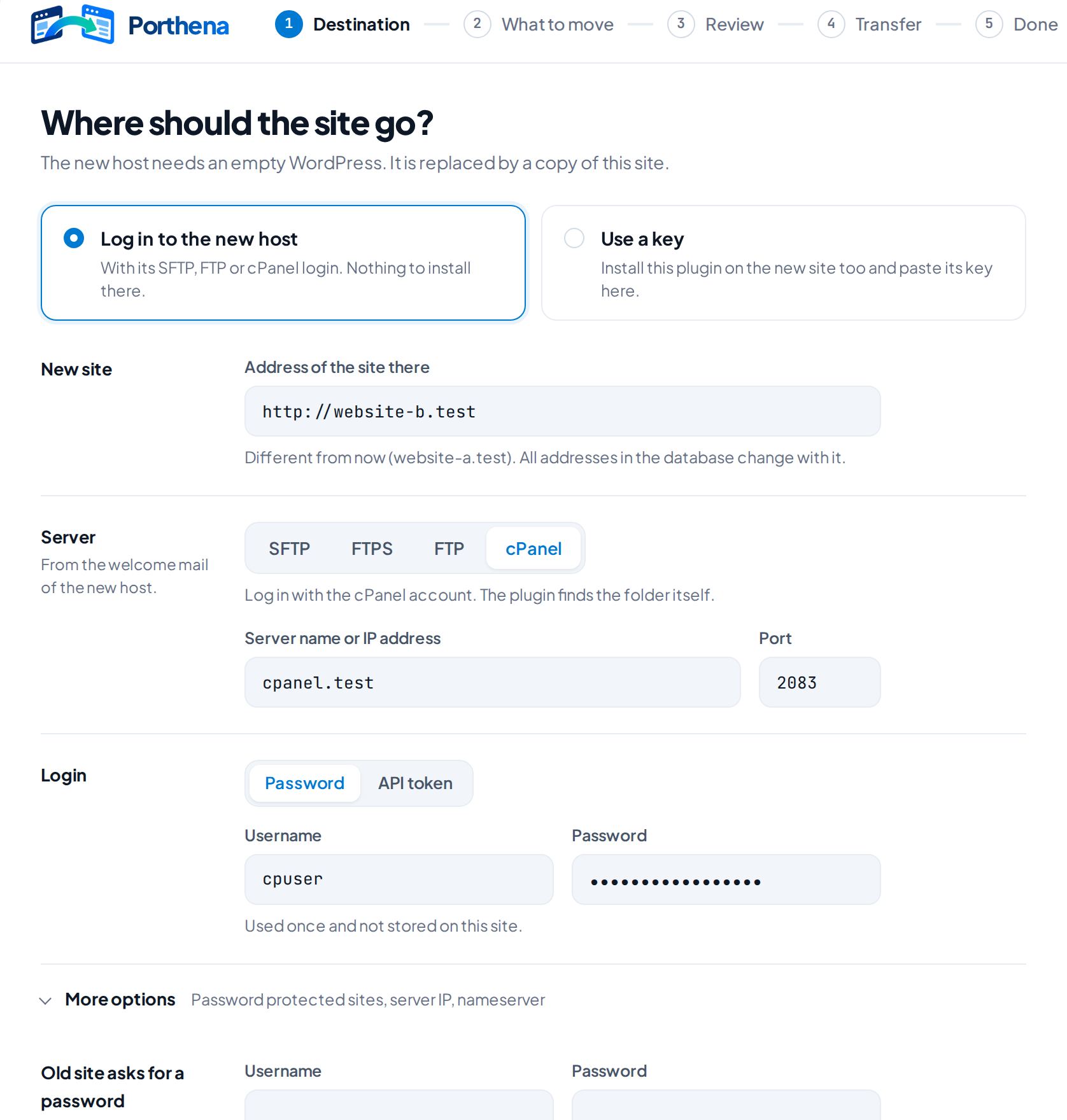
New site
Address of the site there is the address the new site has now, for example a temporary address of the new host. When it differs from the old address, every address in the database changes with it. See Addresses and multisite.
Server
| Method | Port | Sign in with | Good to know |
|---|---|---|---|
| SFTP | 22 | Password, or Key file: a private key and its passphrase | You confirm the fingerprint of the server on the first test. |
| FTPS | 21 | Password | FTP with encryption that starts on port 21. Port 990 (implicit FTPS) is not supported. |
| FTP | 21 | Password | Not encrypted: the password travels in plain sight. Use it only when the host offers nothing else. |
| cPanel | 2083 | Password, or an API token | Finds the folder of the site by itself. Create a token in cPanel under Security, Manage API Tokens. |
Fill in Server name or IP address, the Port and, except for cPanel, the Folder of WordPress there: the folder on the new server that holds the empty WordPress, for example /public_html. The password, private key or token is used once to place a small helper program and is not stored.
More options
- Old site asks for a password and New site asks for a password: the name and password of a site behind HTTP authentication. They are kept for the length of the move and removed at clean up.
- Address points elsewhere: when the address of the new site does not reach the new server yet, for example because you move a domain that still points to the old host. Fill in the Server IP of the new server or its Nameserver; one of the two is enough.
Test connection
Press Test connection. Porthena checks five things and ticks them off: Server answers, Login accepted, Folder is writable, Empty WordPress found and New server can reach this site. When all five are ticked the button becomes Continue.
Is this the right server?
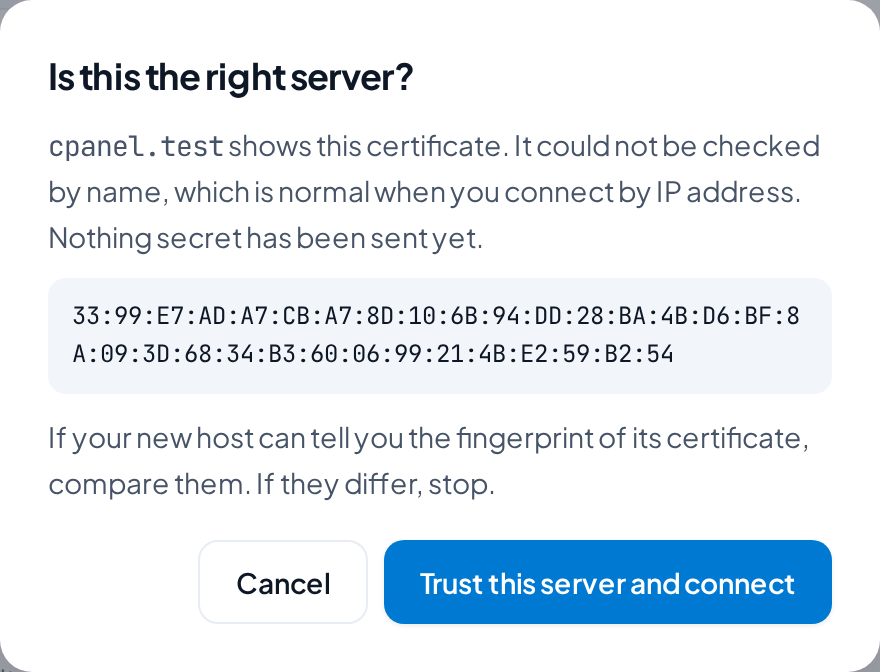
With SFTP this question comes on the first test. With FTPS and cPanel it comes when the certificate of the server cannot be checked, which is normal when you connect by IP address. Compare the fingerprint with the one your new host shows, if it can, and press Trust this server and connect. If they differ, stop. When a server later shows another key than the one you confirmed, Porthena stops the move and says so.
Use a key instead
With a key nothing signs in anywhere: Porthena on the new site makes a key, and you paste it on the old site. Use it when you have no login for the new server, or when the old host does not allow outgoing connections.
- Install and activate Porthena on the new site, open it and choose Use a key.
- Under Is this the new site? press Create key, then Copy. The key is valid for 30 minutes. A new key replaces the previous one if that was not used.
- On the old site choose Use a key, paste it under Paste the key and press Test connection.
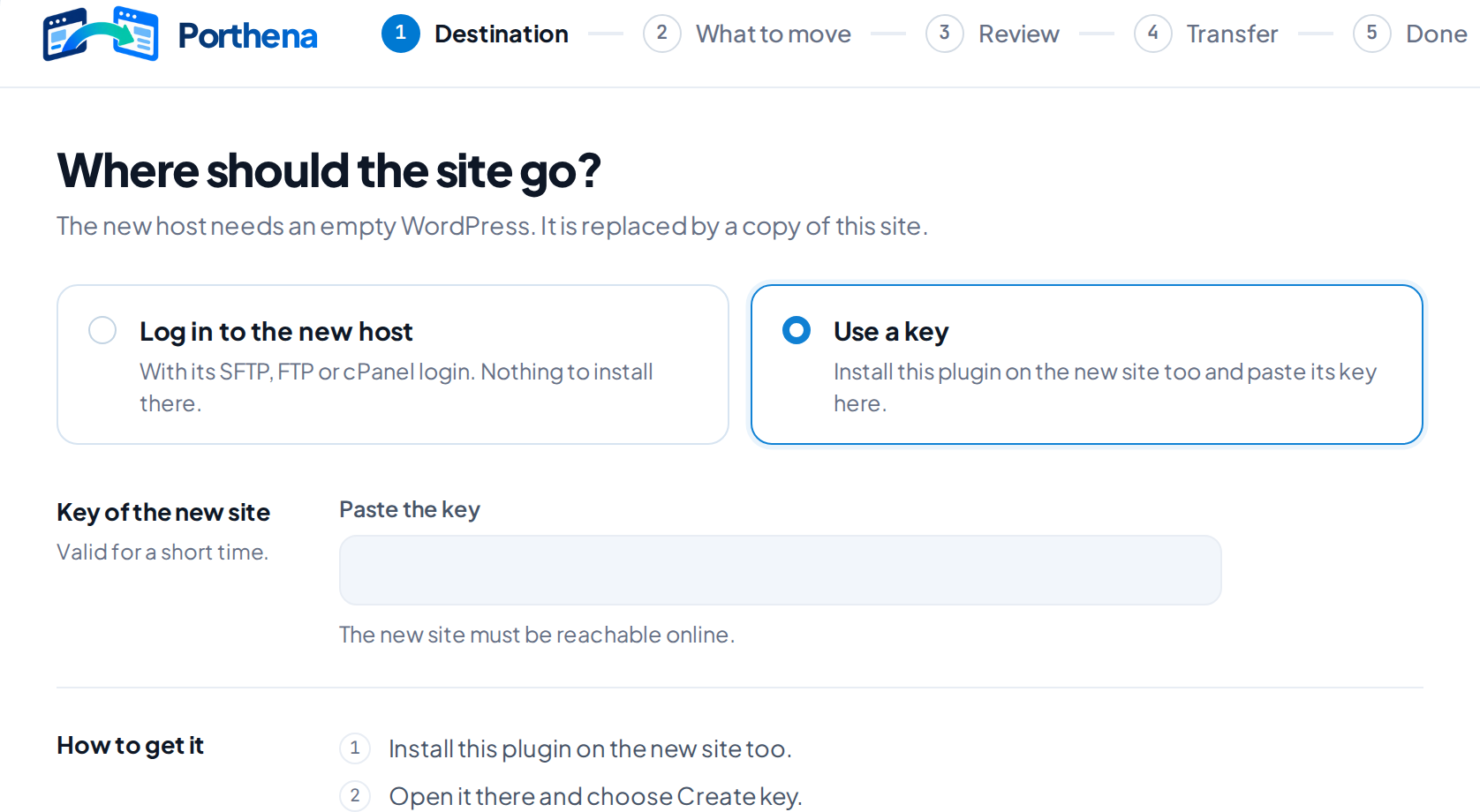
The new site must be reachable online. Porthena stays installed on the new site after the move; remove it there yourself when you are done.
What to move
The screen What should move? lists the folders and database tables of the site with their size. Everything that belongs to WordPress is on.
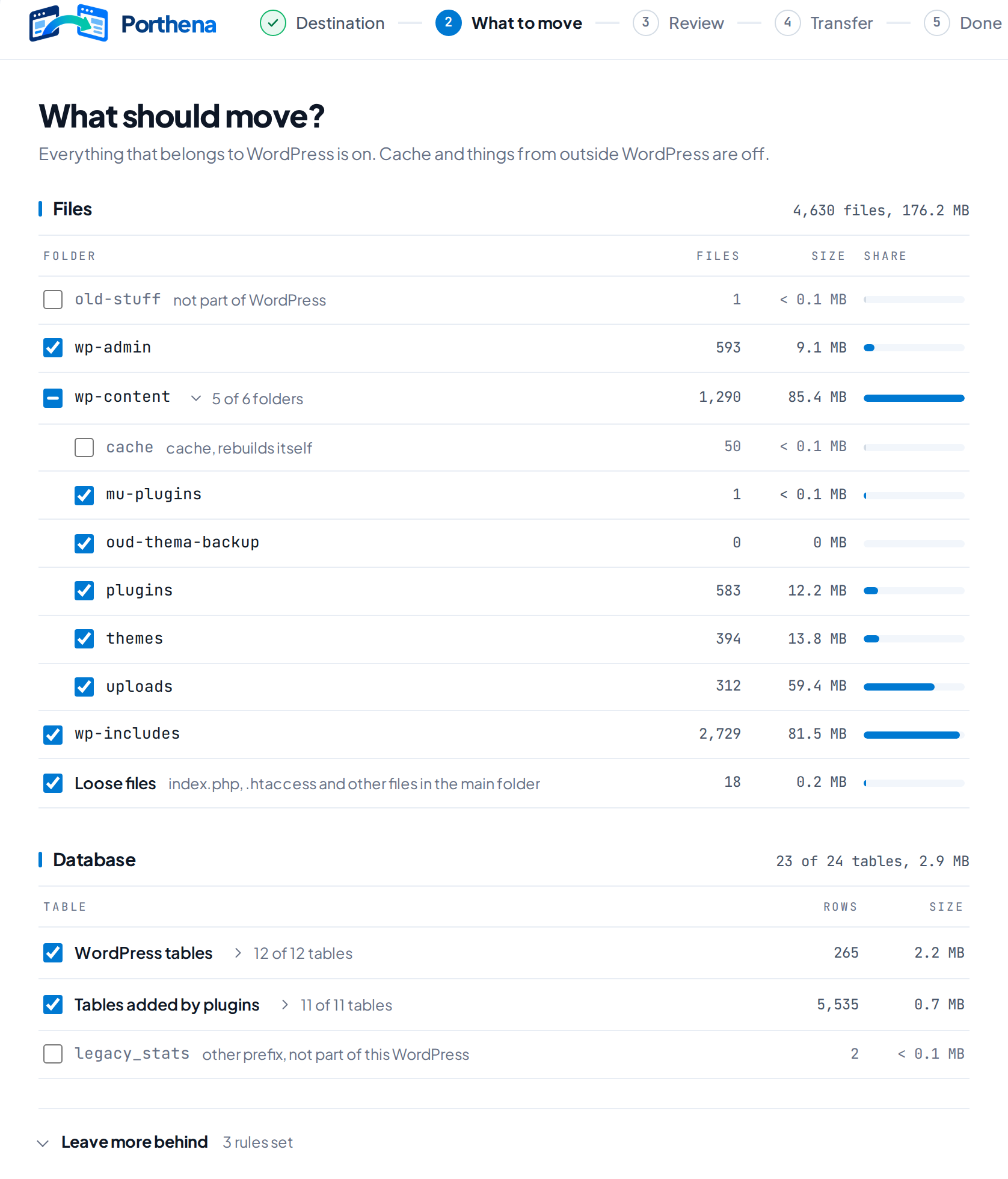
Off unless you tick it
- Cache folders in
wp-content:cache,et-cache,litespeed,wp-cloudflare-super-page-cache,wflogs,upgradeandupgrade-temp-backup. - Old backups of other plugins:
updraft,ai1wm-backups,backups-dup-lite,backups-dup-pro,backupandbackups. - Folders in the main folder that are not part of WordPress, and tables with another prefix.
Leave more behind
Skip files larger than takes a size in MB. Skip names or paths takes one pattern per line, for example *.zip or wp-content/uploads/backups. A star stands for any name, two stars also cross folders, and upper and lower case are the same. Up to 20 patterns. The report lists what your rules kept behind.
Review and start
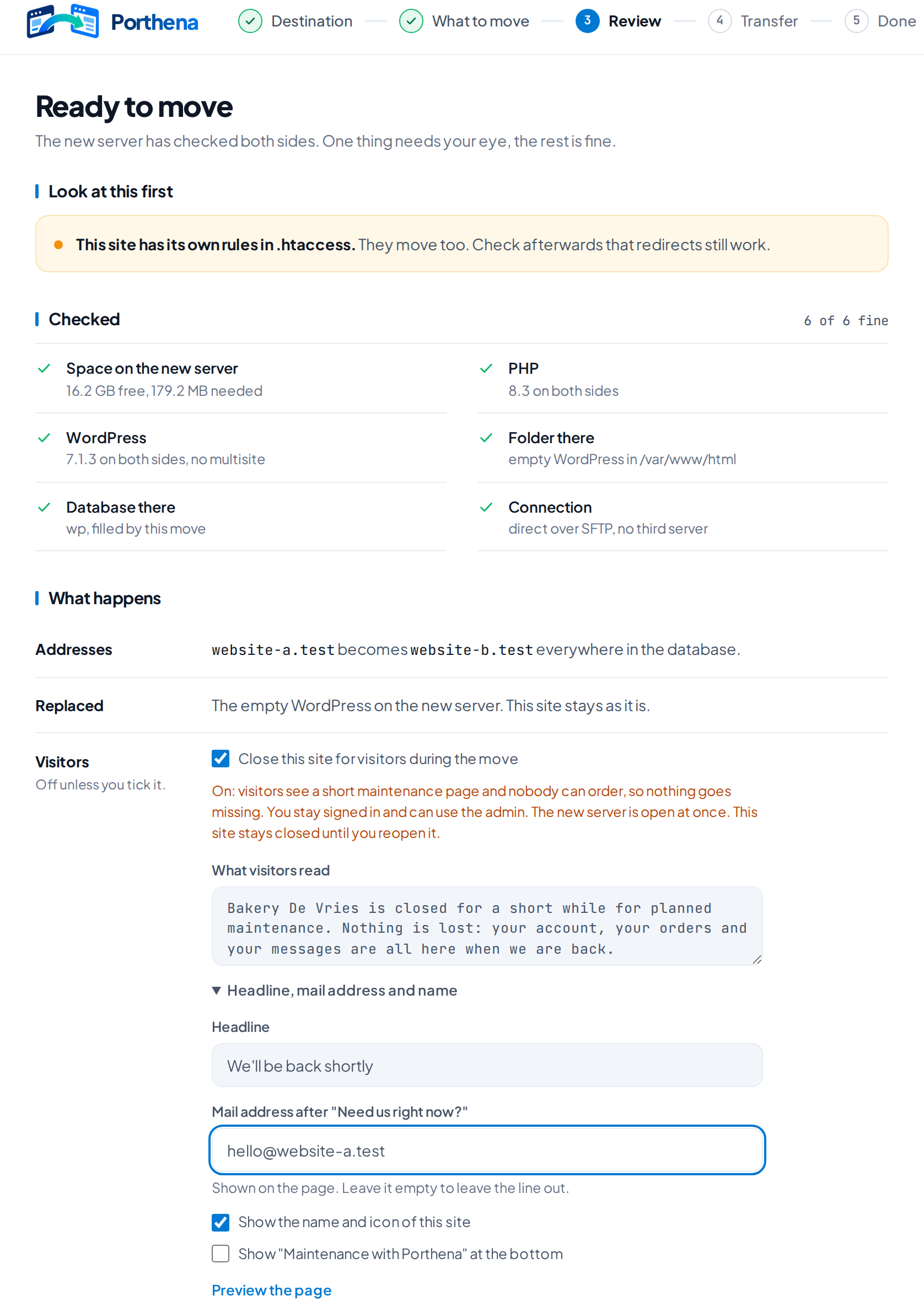
The screen Ready to move shows what the new server found before anything is copied.
- Look at this first: notes that need your eye, for example rules in
.htaccessthat move along. - Checked: space on the new server, PHP, WordPress, the folder, the database and the connection.
- What happens: how the address changes, what is replaced, and the choices below.
Your choices
- Close this site for visitors during the move: off unless you tick it. See Close the site.
- Clean the new server, Remove what is only on the new server: off unless you tick it. When on, plugins, themes and files that exist only on the new server are removed inside the folders you move, so both sides end up the same.
- Left behind: what stays on the old site. Change takes you back to the previous screen.
- Notify me: an email address for one message when the move is done or stopped.
Press Start transfer, or Close this site and start when you ticked closing.
Transfer
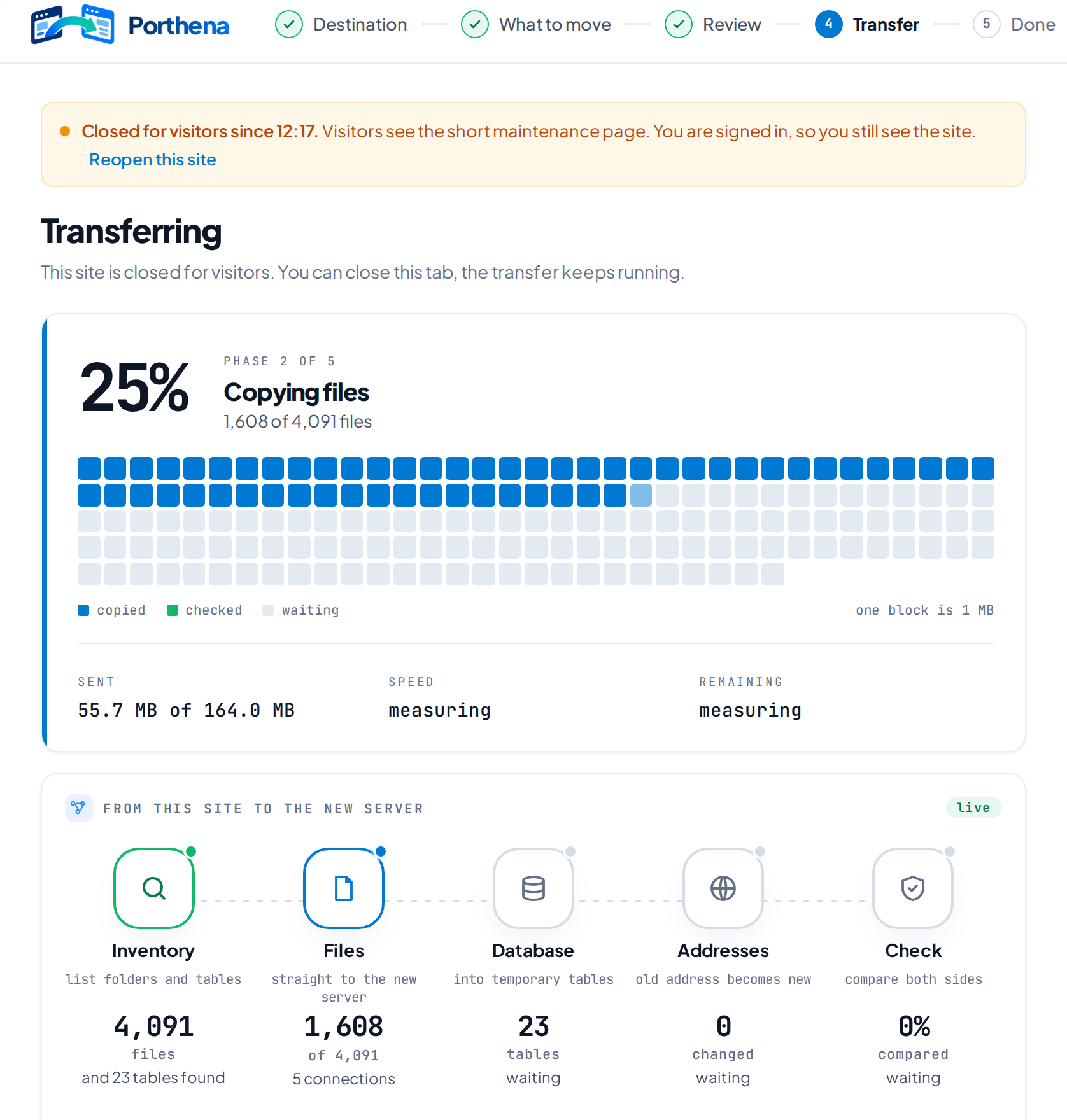
The screen Transferring follows five stages: Inventory, Files, Database, Addresses and Check. The new server starts with one connection and adds more while the old site keeps up, up to six. When the old site slows down or answers with too many requests, it goes back and the log says so.
Close the tab
The move goes on without the browser when the old site can call itself, or else through WP Cron. If neither works, the screen asks you to keep the tab open and shows Pause and Resume.
Stop and continue
Stop asks Stop the transfer? first. After a stop, or when something failed, you choose Continue where it stopped, Discard this transfer or Check the details. What already arrived is not fetched again. A later move to the same new server only brings files that changed.
The log
Every step is in the log under the stages. Warnings only filters it, Copy log and Download log take it with you.
With an address under Notify me you get Your site has been moved with the report attached, or The transfer stopped when it failed. No mail is sent when you press Stop yourself.
Share the status
Under Share the status on the transfer screen, Create a link makes a page that shows how the move is going, without a sign in. Send it to a client or a colleague.
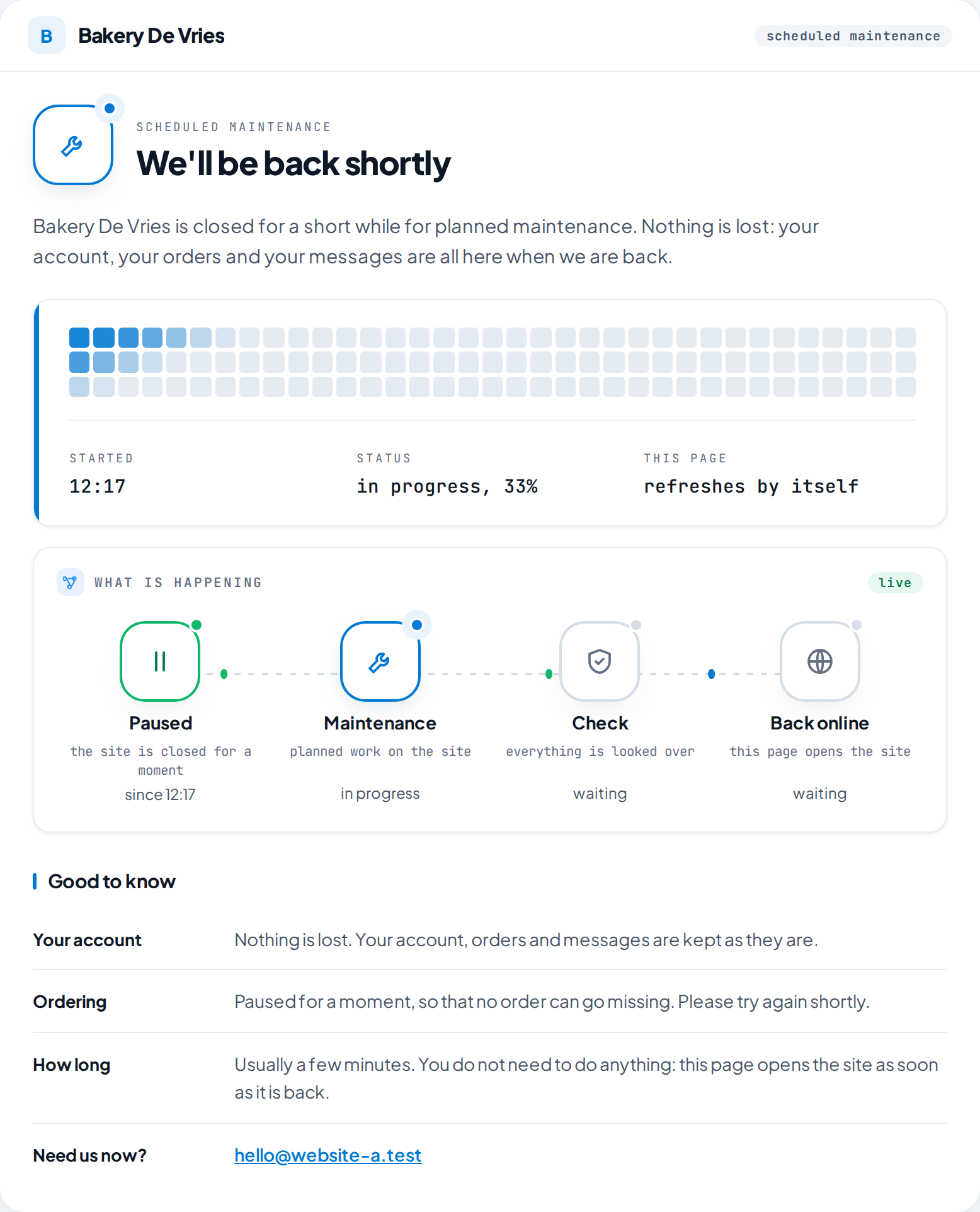
- It shows the start time, the progress, the stages and a few short answers. It shows no server addresses, no file names and no log.
- The link is shown once, so copy it right away. Porthena keeps only a fingerprint of it.
- It has no end date. It stops working when you press Stop sharing or Create a new link, discard the transfer, or clean up.
Close the site for visitors
Leave the site open and nothing changes for visitors, but what they do during the move, such as orders, comments or forms, is not on the new server. For a shop or a busy site, tick Close this site for visitors during the move on the Review screen.
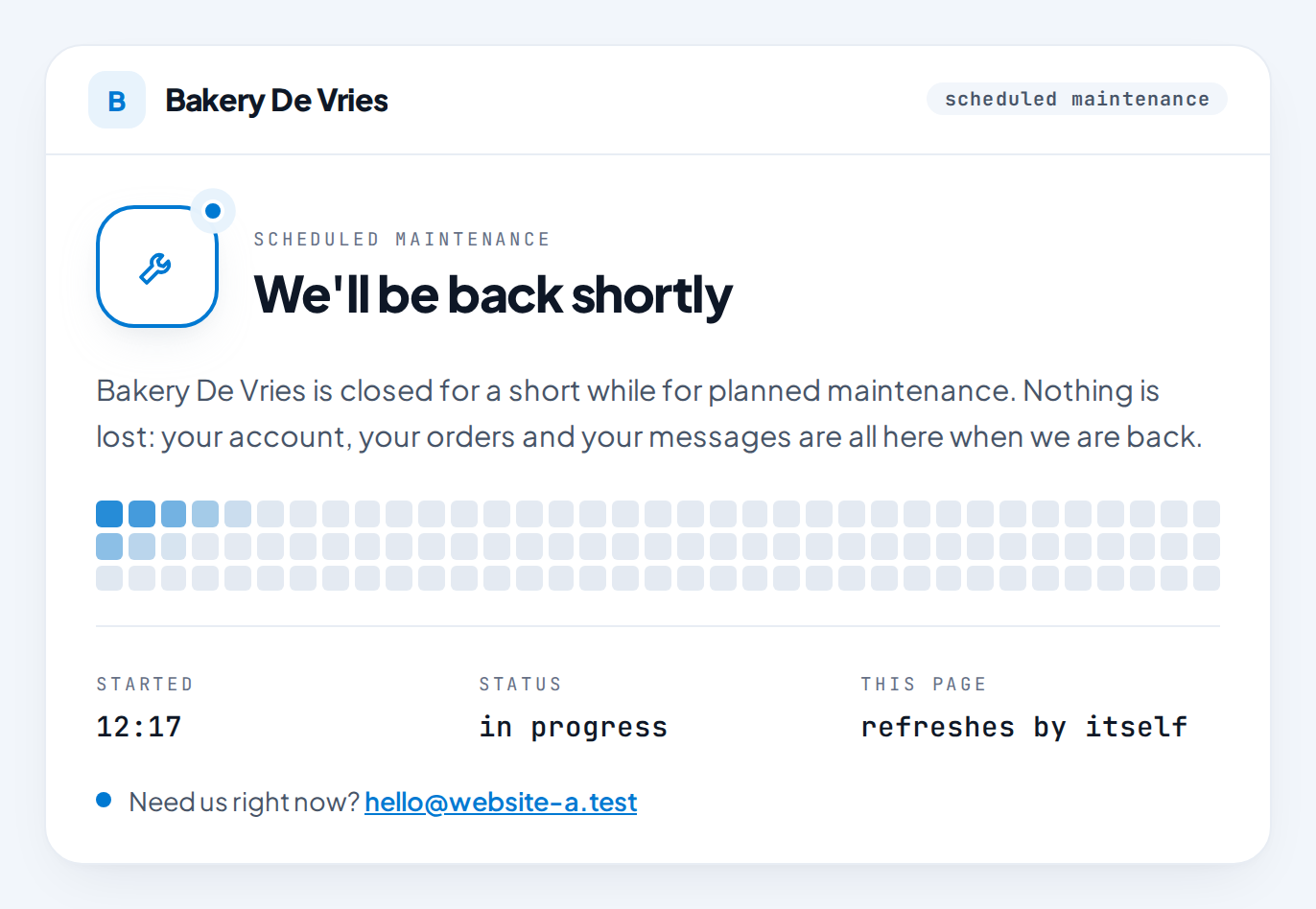
- Visitors get a short maintenance page from the moment the transfer starts. You set What visitors read, the Headline and the mail address after Need us right now?, and check it with Preview the page.
- The page answers with status 503, the code that tells search engines to come back later. It loads nothing from other sites. The Porthena name is only on it when you switch that on.
- You keep seeing the site while you are signed in as administrator. Stay signed in: only the sign in page of WordPress itself stays open.
- The new site is open at once. The old one stays closed until you press Reopen this site, on the transfer or the done screen. Clean up, switching the plugin off and removing it also reopen it.
Reopen the old site only if you call the move off. What visitors do there after that is not on the new server.
Final move for shops
The usual way for a shop: a first move with the site open, check the new site in peace, and then at the moment you switch DNS a final move that only fetches what changed.
- Run a normal move with the site open.
- On the done screen, under Final move, for shops and busy sites, press Start the final move when you are ready to switch.
- Confirm Close this site and fetch the last changes? with Close this site and start.
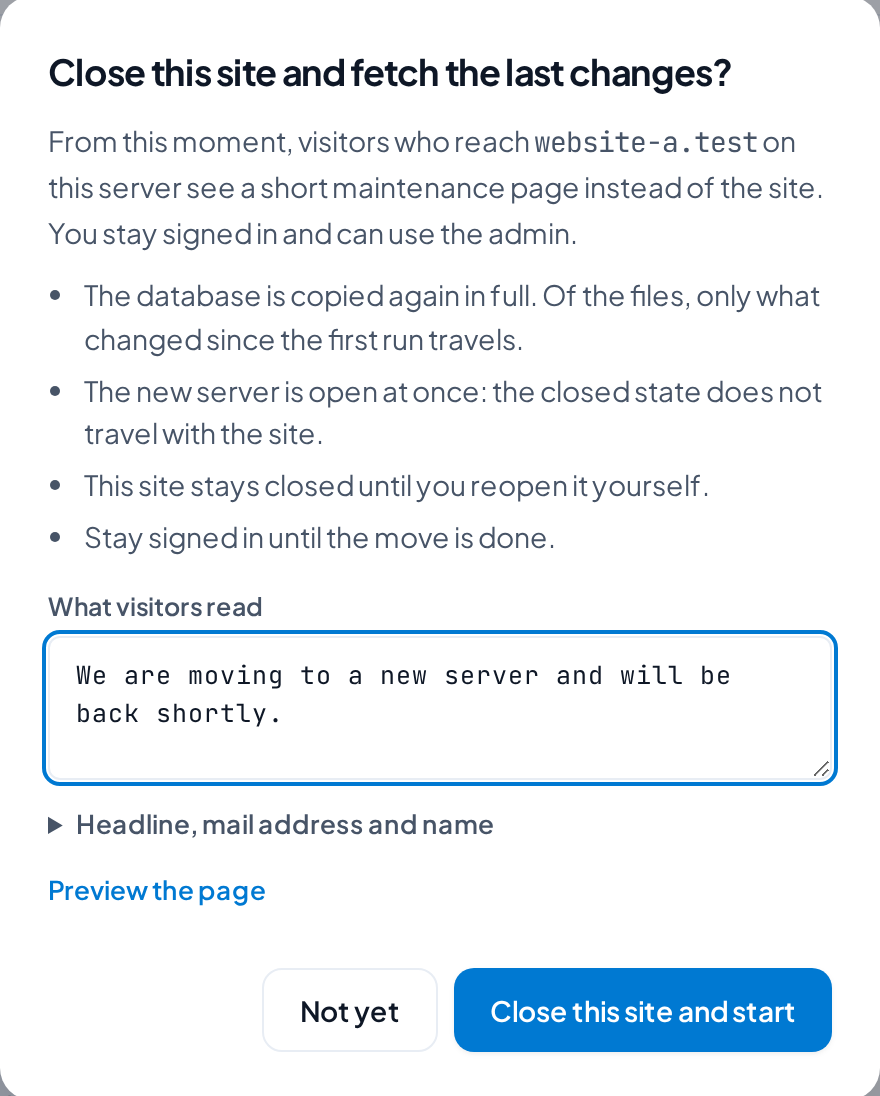
The site closes, the database is copied again in full and only files that changed since the first run travel. The new server is open at once. The final move is offered for about a day after the first run, as long as the helper program on the new server is still there.
Check the new site and switch DNS
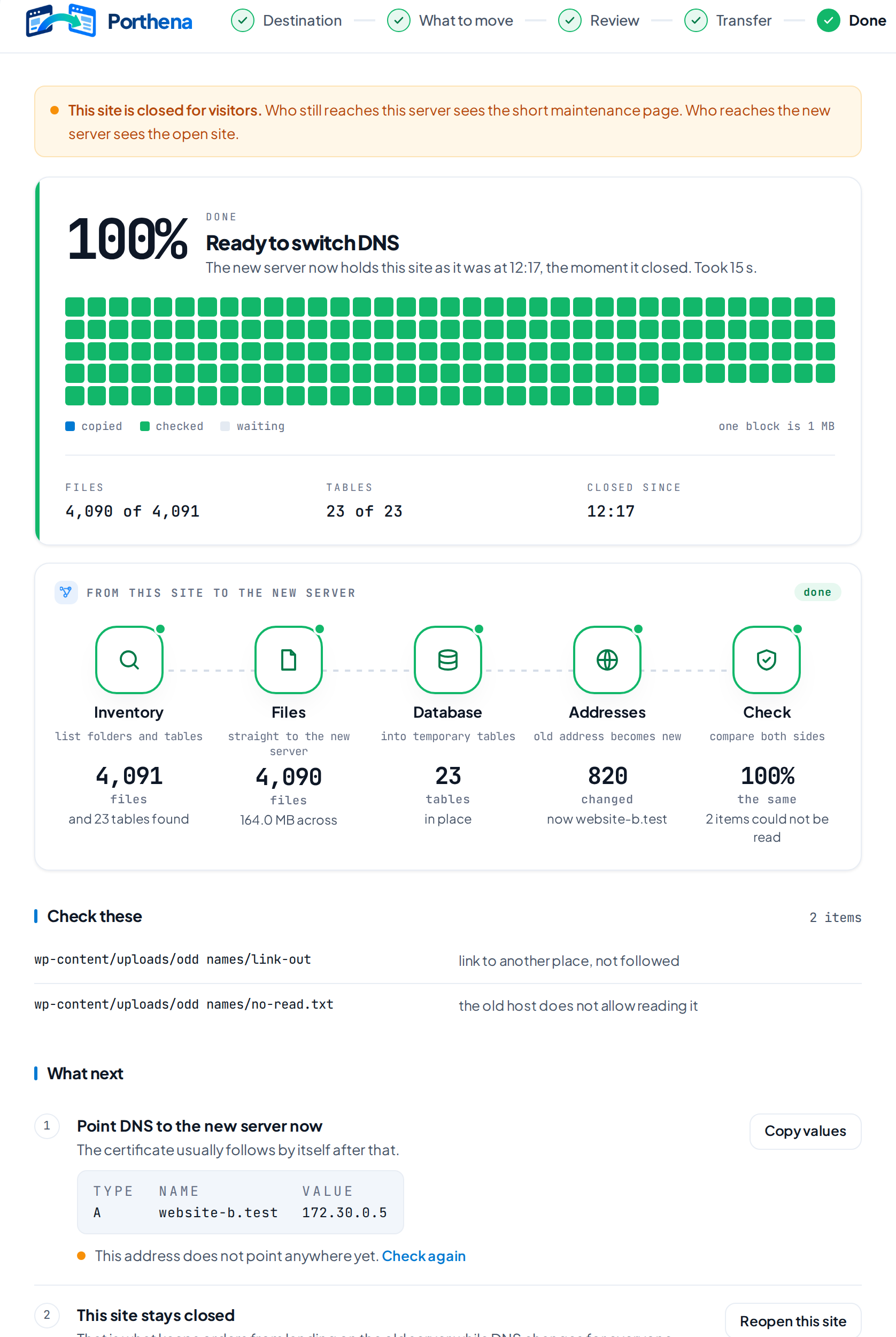
The done screen says Moved and checked, or Moved, with differences when something needs a look. Those items are listed under Check these, for example a file the old host does not allow to be read. Open the new site and Download report are on the right.
Look before you switch
While the domain still points to the old server, Look at the new site gives one line for the hosts file on your computer, with Copy. Add it, and your computer alone sees the new site under the real address. Take the line out afterwards.
172.30.0.5 website-b.testPoint DNS to the new server
Change one record at the place where your domain is managed. Porthena shows it as Type, Name and Value: an A record (or AAAA for IPv6) with the address of the new server. Copy values copies it. The certificate usually follows by itself on the new host once the record has changed.
Check again asks the resolver of the old site and the public resolvers 1.1.1.1 and 8.8.8.8 where the address points. It says This address now points to the new server when all of them agree. A change can take from minutes to a day, depending on the time to live of the old record.
Mail is not part of the move. Move mailboxes separately, before you change the records for mail.
The report
After every move Porthena writes a report: one HTML file that opens in any browser, also offline. Get it with Download report; it is attached to the email too.
- The move: the result, a map of everything that moved, the five stages with their time.
- Files and Database: folders and tables as bars, what stayed behind and why.
- Speed: how fast the files travelled, with average and peak.
- The website and The servers: what the site consists of, the old and the new server side by side, and the DNS record to set.
- Log: the full log of both servers.
Clean up removes the report from the old site. Download it first if you want to keep it.
Clean up
When the new site runs well and you no longer need the old hosting, press Remove plugin under Clean up and confirm with Yes, remove. That:
- removes the helper program from the new server, if it is still there;
- removes the job and the report, and ends a shared status link;
- reopens the old site if it was closed;
- switches Porthena off and deletes it on the old site. Porthena on the new site, if you used a key, stays.
The helper program
To let the new server fetch the site, Porthena places a folder named pt- plus 16 random characters in the WordPress folder of the new server, next to wp-config.php. After a move with the site closed, and after a final move, it removes itself at once. After a move with the site open it stays for up to a day, so a final move can use it; it holds the key the two servers share, not your passwords. Remove it now on the done screen removes it sooner.
Addresses and multisite
When the new site has another address, Porthena changes the old address to the new one everywhere in the database, also inside serialized and JSON data, in a way that keeps that data valid. Tables of other plugins are changed too, and so are tables without a primary key. Views are not copied as tables. When the address stays the same, nothing is changed.
A network of sites
A multisite network moves as one, with all its sites, and the network settings are written into wp-config.php on the new server. Sites on the domain of the network, or on a subdomain of it, get the new address. Sites with a domain of their own keep it, so you point that domain yourself. Only a network administrator can use Porthena, from the main site.
What is not moved
- Things outside the site folder: server settings, cron jobs set up on the server, DNS records, email accounts and SSL certificates. Set these up on the new host.
- wp-config.php of the new server stays, because it holds the new database login. Only the table prefix in it is changed to the prefix of the moved tables.
- The cache drop ins
object-cache.phpandadvanced-cache.php. - Private files:
.git,.htpasswd,.envfiles and copies ofwp-config.phpare never sent. - Porthena itself.
Cache folders and old backups of other plugins are off by default, but you can switch them on. See What to move.
Security and privacy
- Every request between the two servers is signed and sealed with a key that exists for this one move.
- Nothing can be fetched from the old site except while a move runs, and only by the new server that holds the key. The helper program fetches only from the site it was placed for.
- Passwords, private keys and tokens are used once and not stored. The names and passwords of sites behind HTTP authentication are kept for the move and removed at clean up.
- An SFTP server or certificate that cannot be checked is shown to you with its fingerprint before anything secret is sent.
wp-config.phpis never served to the new server and never copied over the one there.
What leaves your servers
Nothing goes to us or to a third party. Porthena has no account, no tracking and no server of its own. The one outside question is Check again, which asks the public resolvers of Cloudflare (1.1.1.1) and Google (8.8.8.8) where the address of the new site points. It sends no data of your site.
Settings for hosts
Porthena has no settings screen. A host or developer can set these in wp-config.php of the old site.
| Constant | What it does |
|---|---|
PORTHENA_MAX_CONNECTIONS | Most connections the new server opens to the old site. 1 to 8, default 6. |
PORTHENA_STEP_SECONDS | How long one step may take when the move runs from an open tab, for a host with a short PHP time limit. Default 20, at least 2. |
PORTHENA_KEEP_OPEN | Set to true to open a closed site, for example when you are locked out. |
define( 'PORTHENA_MAX_CONNECTIONS', 2 );Filters
| Filter | What it does |
|---|---|
porthena_cron_delay | Seconds before WP Cron takes the next step when the site cannot call itself. Default 60. |
porthena_sign_in_fields | Names of extra fields that the sign in page may receive while the site is closed, for a plugin that reads a field of its own early. |
add_filter( 'porthena_sign_in_fields', function ( $fields ) {
    $fields[] = 'my_plugin_token';
    return $fields;
} );
Troubleshooting
This host does not let the site open connections on port 22
The old host blocks outgoing connections on that port, or the new server does not answer there. Ask the old host to allow the port, or use a key: that needs no outgoing connection.
The new server refuses connections on port 22
Nothing listens there. Check that SFTP (or FTP) is switched on at the new host and that the port is right.
cPanel refused this username and password
Check both. If the account asks for a second step when you sign in, use an API token instead. If the login is right and cPanel still refuses, a firewall on the new server, such as Imunify360, may guard port 2083 until it knows the address of the old server. Ask the new host to allow that address, or use a key. A message that the server answered with something that is not cPanel usually means the port is wrong: cPanel listens on 2083.
No WordPress found in that folder on the new server
Install an empty WordPress there first, or correct Folder of WordPress there.
The WordPress there is not empty
The new WordPress has more than three published posts or pages, or more than one user. Check that you picked the right server. Replace what is there continues anyway.
The new server cannot reach this site
Usually a firewall or a security plugin on the old site blocks the new server, often with status 403. Allow the address of the new server there. If the address of the new site does not point to the new server yet, fill in its IP address or nameserver under More options, Address points elsewhere.
PHP on the new server needs the cURL and sodium extensions
Ask the new host to switch them on. They are part of almost every PHP setup.
This key has expired, or is not a valid key
A key lives 30 minutes. Create a new one on the new site and copy it again in full.
The screen asks to keep the tab open
The old site cannot call itself and WP Cron does not run, often because DISABLE_WP_CRON is set without a real cron job. Keep the tab open until the move is done, or let the host run wp-cron.php every minute.
The old site becomes slow
Porthena already lowers the number of connections when the old site cannot keep up. On a small hosting plan, set PORTHENA_MAX_CONNECTIONS to 2. See Settings for hosts.
I am locked out of a closed site
Sign in at wp-login.php, or at the address of the plugin that moved your sign in page. A single sign on, or a sign in form on a page of the site, may not work while it is closed. If that does not help, add define( 'PORTHENA_KEEP_OPEN', true ); to wp-config.php, sign in, press Reopen this site and take the line out again.
A folder named pt and some characters stays on the new server
That is the helper program. After a move with the site open it stays for up to a day for a final move. Press Remove it now or Clean up, or wait: it removes itself a day after it last worked. If the old site is gone already, you can delete the folder by hand.
Still stuck? Mail [email protected] with the log from the transfer screen (Download log).